Welcome to the the third post of my New in Quartz.Net 2.0 series.
Tuesday, February 8, 2011
New in Quartz.Net 2.0-No More IStatefulJob
NOTE: I'm now blogging at http://jayvilalta.com/blog and not updating this blog anymore. For information on the latest version of Quartz.Net, visit me there.
Welcome to the the third post of my New in Quartz.Net 2.0 series.
Welcome to the the third post of my New in Quartz.Net 2.0 series.


Friday, February 4, 2011
New in Quartz.Net 2.0–Directory Scan Job
NOTE: I'm now blogging at http://jayvilalta.com/blog and not updating this blog anymore. For information on the latest version of Quartz.Net, visit me there.
This is the second post of the New in Quartz.Net 2.0 series. Today we will look at the DirectoryScanJob, which is a new job in Quartz.Net 2.0.
The DirectoryScanJob is very similar to the FileScanJob, which is available in Quartz.Net 1.0. As you can probably tell from the names, the main difference between the two jobs is that the DirectoryScanJob scans for changes in… you quessed it… a directory , whereas the FileScanJob scans for changes in… yes, you guessed it again… a file. If you’re not familiar with the FileScanJob, don’t worry, we will look at the DirectoryScanJob in detail.
This is the second post of the New in Quartz.Net 2.0 series. Today we will look at the DirectoryScanJob, which is a new job in Quartz.Net 2.0.
The DirectoryScanJob is very similar to the FileScanJob, which is available in Quartz.Net 1.0. As you can probably tell from the names, the main difference between the two jobs is that the DirectoryScanJob scans for changes in… you quessed it… a directory , whereas the FileScanJob scans for changes in… yes, you guessed it again… a file. If you’re not familiar with the FileScanJob, don’t worry, we will look at the DirectoryScanJob in detail.
Introducing the DirectoryScanJob
First, let’s take a look at what the documentation says about this new job:“Inspects a directory and compares whether any files' "last modified dates" have changed since the last time it was inspected. If one or more files have been updated (or created), the job invokes a "call-back" method on an identified DirectoryScanListener that can be found in the SchedulerContext.”That seems pretty self explanatory, no? Basically, you tell the job that it needs to check a certain directory to see if new files have been added or if existing files have been modified. When the job is executed it checks the files and stores the file information in its JobDataMap. The next time the job runs, it compares the information stored in the job’s JobDataMap, with the files in the directory. If any changes are found, the job calls the FilesUpdatedOrAdded method of the IDirectoryScanListener that was configured for that job, passing in an arrary of FileInfo objects.
Configuring the DirectoryScanJob
To configure and use a DirectoryScanJob, you will need to set the following keys in the JobDataMap:- DIRECTORY_NAME: this is the path to the directory that you want to monitor.
- DIRECTORY_SCAN_LISTENER_NAME: this is the name of the DirectoryScanListener that should called if changes are detected
- MINIMUM_UPDATE_AGE: this is an optional parameter which lets you specify how many milliseconds must have passed since the file’s last modified time in order to consider the file modified. If this parameter is not specified, it defaults to 5000 milliseconds.
Possible Uses for the DirectoryScanJob
There are many uses for the DirectoryScanJob, so let’s list a few here:- You could replace any FileWatcher type services that you might have implemented
- Scan files uploaded by users for viruses
- Schedule other jobs to process files that have been copied to the directory for processing
Sunday, January 30, 2011
New in Quartz.Net 2.0–The Calendar Interval Trigger
NOTE: I'm now blogging at http://jayvilalta.com/blog and not updating this blog anymore. For information on the latest version of Quartz.Net, visit me there.
This is the first post of what will become a series of posts highlighting the new features that will be available in Quartz.Net 2.0.
To kick off the series, we will take a look at the CalendarIntervalTrigger. This trigger is used to fire jobs based on a recurring calendar time interval. The following time intervals are available:
This trigger has a RepeatInterval property, which can be used to indicate that the trigger should fire every N intervals. For example, if you set the RepeatIntervalUnit to Week and the RepeatInterval to 2, your trigger will fire every two weeks.
Here is what the source code documentation says about this trigger:
This is the first post of what will become a series of posts highlighting the new features that will be available in Quartz.Net 2.0.
To kick off the series, we will take a look at the CalendarIntervalTrigger. This trigger is used to fire jobs based on a recurring calendar time interval. The following time intervals are available:
| IntervalUnit |
| Minute |
| Hour |
| Day |
| Week |
| Month |
| Year |
Here is what the source code documentation says about this trigger:
A concrete ITrigger that is used to fire a IJobDetail based upon repeating calendar time intervals.That’s it for today’s “New in Quartz.Net 2.0” post. Stay tuned for more, coming soon!
The trigger will fire every N (see RepeatInterval) units of calendar time (see RepeatIntervalUnit) as specified in the trigger's definition. This trigger can achieve schedules that are not possible with ISimpleTrigger (e.g because months are not a fixed number of seconds) or ICronTrigger (e.g. because "every 5 months" is not an even divisor of 12).
If you use an interval unit of IntervalUnit.Month then care should be taken when setting the startTime value that is on a day near the end of the month. For example, if you choose a start time that occurs on January 31st, and have a trigger with unit IntervalUnit.Month and interval 1, then the next fire time will be February 28th, and the next time after that will be March 28th - and essentially each subsequent firing will occur on the 28th of the month, even if a 31st day exists. If you want a trigger that always fires on the last day of the month - regardless of the number of days in the month, you should use ICronTrigger.
Friday, January 28, 2011
Installing Quartz.Net 2.0 as a Windows Service
NOTE: I'm now blogging at http://jayvilalta.com/blog and not updating this blog anymore. For information on the latest version of Quartz.Net, visit me there.
UPDATE: I've written a new post that has been updated with the release of Beta 1. Take a look at this newer post instead.
Quartz.Net 2.0 is currently under development. No official release (beta or otherwise) is available yet but if you really want to get started with it, you can download the source code from Github and build it yourself. In this post I am going to describe how to install the latest version of Quartz.Net 2.0 from source.
If you’re not familiar with how to use Git or Github, then go ahead and download a zipped file of the source from here.
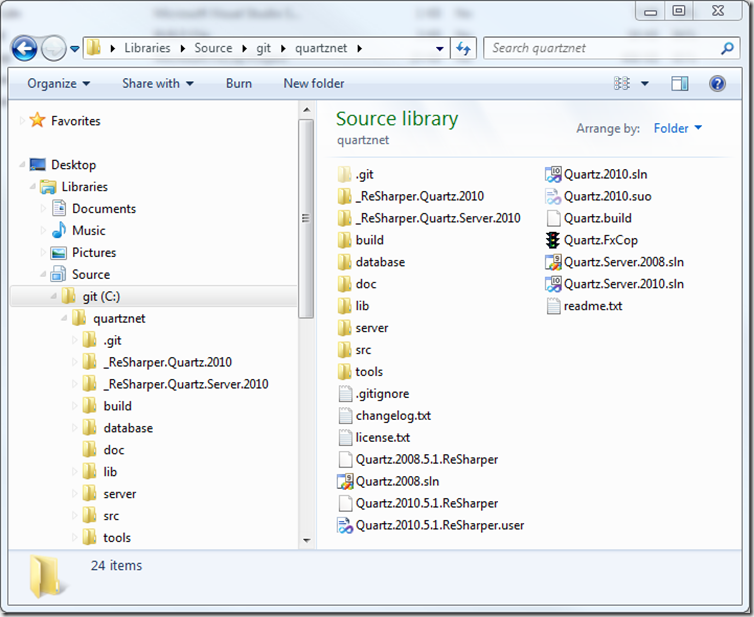
At this point I am going to assume that you have already downloaded the Quartz.Net source code and that it is in a folder somewhere on your drive. On my box I have downloaded the source to C:\git\quartznet, and the image below shows what that folder looks like. Your folder should look similar to the screenshot below.

Quartz.Server.exe install
If all goes well, then you should see the following in your command prompt window (replace 3.5 with 4.0 where appropriate):

By default, the service is installed with a startup type of automatic and under the Local System account. To uninstall, type the following into your command prompt:
Quartz.Server.exe uninstall
Now, go fire that puppy up and start experimenting!
As always, let me know in the comments if this stuff is useful and what topics you’re interested in reading about.
UPDATE: I've written a new post that has been updated with the release of Beta 1. Take a look at this newer post instead.
Quartz.Net 2.0 is currently under development. No official release (beta or otherwise) is available yet but if you really want to get started with it, you can download the source code from Github and build it yourself. In this post I am going to describe how to install the latest version of Quartz.Net 2.0 from source.
Getting the Source
If you are familiar with Git, Github and how it works, then just download the repository locally using whatever method you prefer. There are a lot of posts and even a free book on how to use Git, so I am not going to go over that stuff here.If you’re not familiar with how to use Git or Github, then go ahead and download a zipped file of the source from here.
At this point I am going to assume that you have already downloaded the Quartz.Net source code and that it is in a folder somewhere on your drive. On my box I have downloaded the source to C:\git\quartznet, and the image below shows what that folder looks like. Your folder should look similar to the screenshot below.

Building The Source Code
Since this post is about installing Quartz.Net 2.0 as a windows service, let’s build the server project.Instructions for Visual Studio 2008 and .Net 3.5
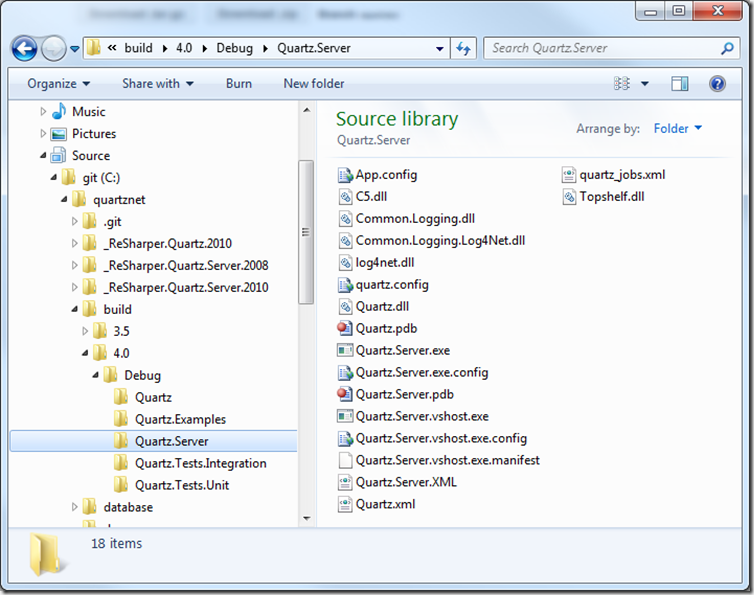
Double click on the Quartz.Server.2008.sln file if you have Visual Studio 2008 installed. This will open the file in VS 2008. Build the solution by pressing F6. This will build the binaries targeting the 3.5 framework. The build output for this project can be found under the build\3.5\Debug\Quartz.Server folder, as shown below.
Instructions for Visual Studio 2010 and .Net 4.0
If you have Visual Studio 2010 installed, double click on the Quartz.Server.2010.sln file to open it in VS 2010. Build the solution by pressing F6. This will build the binaries targeting the 4.0 framework. The build output for this project can be found under the build\4.0\Debug\Quartz.Server folder, as shown below.
Installing Quartz.Net 2.0 as a Windows Service
Now that you have built the source code, let’s install the service. Open a command prompt as administrator (if you are running a Vista or later OS) and cd to the directory that contains the Quartz.Server.exe file. This directory will be different based on whether you use VS 2008 or VS 2010, so double check that the file exists first in one of the paths that I mention above. At this point, all that is left is to install the service. Type the following into your command prompt:Quartz.Server.exe install
If all goes well, then you should see the following in your command prompt window (replace 3.5 with 4.0 where appropriate):

By default, the service is installed with a startup type of automatic and under the Local System account. To uninstall, type the following into your command prompt:
Quartz.Server.exe uninstall
Now, go fire that puppy up and start experimenting!
As always, let me know in the comments if this stuff is useful and what topics you’re interested in reading about.
Tuesday, January 18, 2011
Quartz.Net Library is Available on NuGet
NOTE: I'm now blogging at http://jayvilalta.com/blog and not updating this blog anymore. For information on the latest version of Quartz.Net, visit me there.
The Quartz.Net library has been uploaded to NuGet. If you’re using Quartz.Net and NuGet, this should help you with setting up your environment and in keeping things current. The Common.Logging and the Common.Logging.Log4net and Log4net libraries are on NuGet as well. These are all required dependencies for running Quartz.Net with Log4net.
The Quartz.Net library has been uploaded to NuGet. If you’re using Quartz.Net and NuGet, this should help you with setting up your environment and in keeping things current. The Common.Logging and the Common.Logging.Log4net and Log4net libraries are on NuGet as well. These are all required dependencies for running Quartz.Net with Log4net.
Saturday, January 15, 2011
Quartz.Net Development is Moving to Github
NOTE: I'm now blogging at http://jayvilalta.com/blog and not updating this blog anymore. For information on the latest version of Quartz.Net, visit me there.
In case you didn’t know it yet, development of Quart.Net is moving from Sourceforge to Github. If you want to follow development of the latest version of Quartz.Net. be sure and check out the project on Github. This should make it easier for everybody to contribute any changes to the project.
In case you didn’t know it yet, development of Quart.Net is moving from Sourceforge to Github. If you want to follow development of the latest version of Quartz.Net. be sure and check out the project on Github. This should make it easier for everybody to contribute any changes to the project.
Tuesday, November 9, 2010
Quartz.Net GUI Tour - Part 2
NOTE: I'm now blogging at http://jayvilalta.com/blog and not updating this blog anymore. For information on the latest version of Quartz.Net, visit me there.
This is the second part of the Quartz.Net GUI Tour. The first part of the tour covered connecting to schedulers and adding jobs. In this post, I’ll go over the remaining features.

Clicking on the button will cause the job to be scheduled to execute once, immediately.

This concludes the quick tour of the Quartz.Net manager features. I hope you have found it useful.
This is the second part of the Quartz.Net GUI Tour. The first part of the tour covered connecting to schedulers and adding jobs. In this post, I’ll go over the remaining features.
Running Jobs
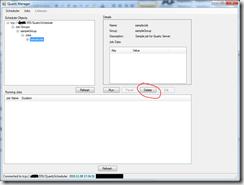
To run a job immediately, select the job from the left tree. The job details will be displayed on the right, and the run button will be enabled, as in the attached screenshot:
Clicking on the button will cause the job to be scheduled to execute once, immediately.
Deleting Jobs
To delete a job, select it from the left tree. The delete button will then become enabled. Click the delete button on the right to delete the job and all of its associated triggers.
Pausing and Resuming Triggers
Quartz.Net manager allows you to pause and resume triggers as well. To enable the pause / resume button, you must first select a trigger from the tree on the left. Once a trigger is selected, the pause button will be enabled. Click on the pause button to pause a trigger. If the trigger you selected is already paused, the button will say Resume instead of Pause. Click on the resume button to reactivate the selected trigger.
Backup To File
The last feature we’ll discuss in the tour is the backup to file feature. This feature lets you backup all of your jobs and triggers to a text (xml) file. This file can be then be used by the xml plugin to load all the job information into, say, a new scheduler instance. To create a backup of your scheduler, right click on the entry for the scheduler in the tree. Select the backup option and enter a file name for your backup file.This concludes the quick tour of the Quartz.Net manager features. I hope you have found it useful.
Subscribe to:
Posts (Atom)